Summary
Knowing how to check ip address on windows is critical for network troubleshooting, SEO monitoring, and digital privacy. While built-in tools like Command Prompt and Settings provide your local network identity, they also expose your vulnerability to IP bans and tracking.
This guide provides 5 proven methods to find your IP across all Windows versions and demonstrates how professional proxy solutions—like rotating residential proxies—can mask your footprint to ensure data accuracy and account security.
Introduction: Why Your Windows IP Address is a Digital Fingerprint
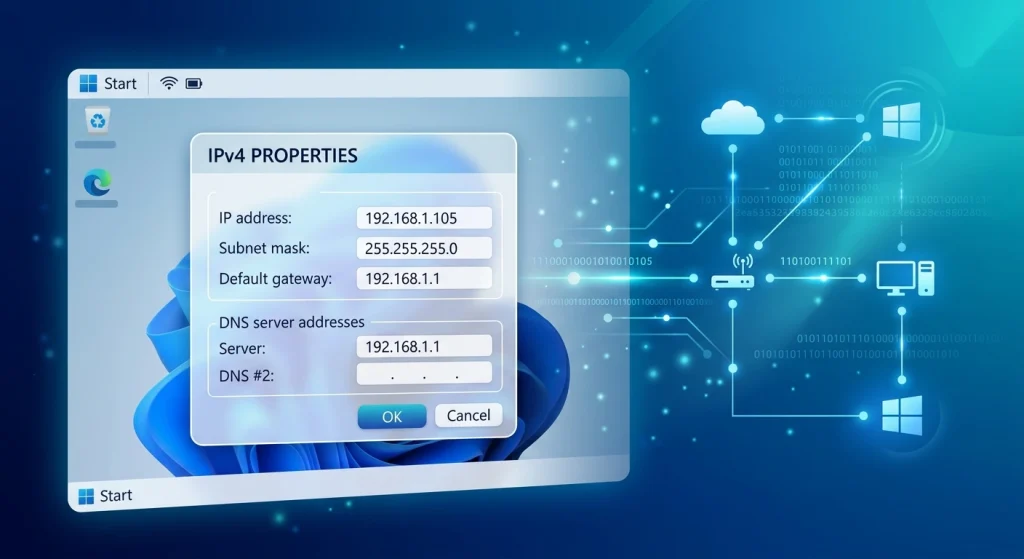
Every time you connect your PC to the internet, you are assigned a unique numerical label. If you are a digital marketer or data analyst, knowing how to check ip address on windows is the first step in ensuring your connection is secure and your data is untainted.
However, there is a catch. Your Windows machine actually has two identities:
- Internal (Private) IP: How your router sees your computer.
- External (Public) IP: How the world (and data platforms) see you.
For professionals performing web scraping or managing multiple social media accounts, relying on a single, static Windows IP often leads to the dreaded “IP Ban” or “Access Denied” screen. In this guide, we’ll show you exactly how to find these addresses and how to use tools like static ISP proxies to bypass common network restrictions.
Method 1: Using Command Prompt (The Fastest Way)
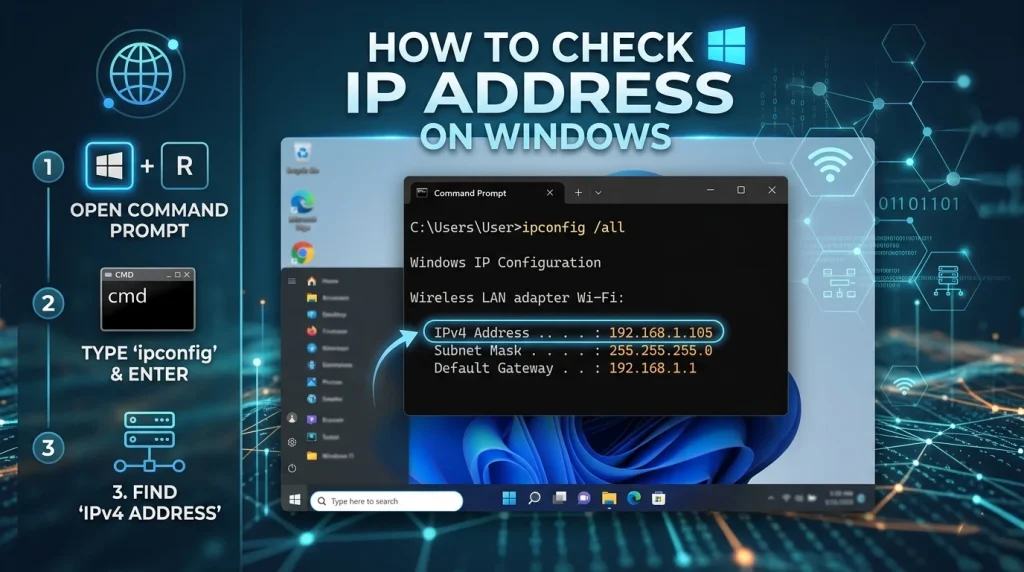
The most reliable command to check ip address in windows is through the Command Prompt. This method is preferred by IT professionals because it provides a wealth of data beyond just the IP.
Step-by-Step: Check IP in Windows CMD
- Press Windows Key + R on your keyboard.
- Type cmd and hit Enter.
- In the terminal window, type ipconfig and press Enter.
- Look for the line labeled IPv4 Address. This is your private network IP.
Understanding “ipconfig /all”
If you need deeper technical insights, such as how to check dns ip in windows, use the command ipconfig /all. This reveals:
- Physical Address (MAC): The hardware ID of your network card.
- DHCP Server: The device assigning your IPs.
- DNS Servers: The “phonebook” of the internet your PC is using.
Method 2: How to Check IP Address in Windows 10 & 11 Settings
For users who prefer a modern graphical interface, the Settings menu is the most accessible way to check windows ip address details.
For Windows 11 Users:
- Open Settings (Win + I).
- Click on Network & internet.
- Select Ethernet or Wi-Fi (depending on your active connection).
- Scroll down to the Properties section. Your IPv4 address will be listed clearly.
For Windows 10 Users:
- Go to Settings > Network & Internet.
- On the left sidebar, click Status.
- Click View hardware and connection properties.
Takeaway: While these local methods are great for setting up a printer or a local server, they do not show your Public IP. For that, you need to look outside your local network.
Method 3: How to Check Public IP in Windows (External Identity)
Websites do not see the “192.168.x.x” address you find in CMD. They see your Public IP assigned by your ISP.
How to check public ip address in windows:
- Open your browser and type “What is my IP” into Google.
- Visit a dedicated site like WhatIsMyIP.com.
The Hidden Danger of Your Public IP
Your public IP reveals your ISP and your approximate geographic location. For SEO professionals, this is a major pain point. If you are in New York but trying to check search rankings in London, your Windows IP will trigger localized results for New York.
The Solution: This is where rotating residential proxies come into play. By routing your traffic through a proxy, you can change your public IP to any location in the world, ensuring your SEO data is 100% accurate.
Windows IP Verification Across Versions
| Windows Version | Primary Tool | Command/Path |
| Windows 11 | Settings App | Network & Internet > Properties |
| Windows 10 | Task Manager | Performance > Wi-Fi/Ethernet |
| Windows 7/8 | Control Panel | Network & Sharing Center > Details |
| Legacy (XP/Vista) | CMD | ipconfig |
What Does Your IP Reveal About You?
When you check my ip address windows, you are looking at a gateway to your privacy. Data platforms use your IP to:
- Identify Your Location: Down to the city or neighborhood level.
- Track Your Activity: Linking your searches to a single ID.
- Enforce Geographic Restrictions: Blocking content based on where your IP is registered.
OkkProxy Expert Insight: The Account Management Risk
If you manage multiple accounts (like Amazon or Facebook) from the same Windows IP, platforms will link these accounts together. If one gets flagged, they all get banned.
To solve this, we recommend static mobile proxies. Because mobile IPs are shared by thousands of real users, they carry the highest “Trust Score” and are almost impossible to block, making them the gold standard for account management.
How to Check IP and Port in Windows for Security
Sometimes, simply knowing your IP isn’t enough. You need to know which “doors” (ports) are open.
- Command: netstat -ano
- Purpose: This tells you which external IPs are currently communicating with your Windows machine.
If you see unfamiliar connections, your IP might be compromised. Using a rotating datacenter proxy for heavy-duty tasks can act as a buffer, protecting your machine’s actual IP from direct exposure to malicious sites.
Comparison: Local IP vs. Proxy IP
| Feature | Local Windows IP | OkkProxy (Residential) |
| Source | Your Router/ISP | Real User Devices |
| Location | Fixed (Home/Office) | Global (Any Country/City) |
| Anonymity | Low | High |
| Web Scraping | High Ban Risk | 99.9% Success Rate |
| Stability | High | Ultra-High (Static ISP) |
Case Study: Resolving IP Bans for an SEO Agency
The Problem: A mid-sized SEO agency was tasked with tracking rank changes for a global client. However, their office IP was quickly “rate-limited” by Google, resulting in constant Captchas and inaccurate data. They initially tried how to check blocked ip address in windows but found no internal fix.
The Strategy: We helped them integrate rotating residential proxies into their rank-tracking software.
- Diversification: Instead of 1 IP, they had access to over 50 million.
- Localization: They could set their Windows environment to appear as if it were in Tokyo, London, or Paris.
- Result: The agency saw a 400% increase in data collection speed and eliminated all Captcha issues.
Advanced Tips: Troubleshooting and Optimization
How to Check IP Address in CMD Windows 10 for Conflicts
If you get an “IP Address Conflict” error, it means two devices on your network have the same address.
- Fix: Open CMD and type ipconfig /release followed by ipconfig /renew.
How to Check DNS Server IP in Windows
If your browsing is slow, your DNS might be the bottleneck. Use nslookup in the command prompt to see which server is resolving your web requests. If you are using a proxy, ensure your DNS requests are also being routed through the proxy to prevent “DNS Leaks.”
Recommended Internal Reading
To further master your network setup, explore our expert guides:
- What is a residential proxy and how does it work?
- Static Mobile Proxies: 9 Powerful Benefits in 2026
- Top 10 Rotating Residential Proxies Tips: Ultimate 2026 Guide
- How to Reveal an IP Address in 2026 (And What You Can Learn From It)
- How Proxies Help With SEO Monitoring and Rank Tracking
FAQ: Everything You Need to Know About Your Windows IP
Can I check my previous IP address in Windows 10?
Windows doesn’t natively log your IP history. However, you can check your router’s DHCP lease logs or use an external service like OkkProxy that logs your proxy usage history for audit purposes.
What is the shortcut key for IP address?
There is no single “key,” but the fastest workflow is: Win+X > A (Open Terminal) > type ipconfig.
How do I check for static IP in Windows 10?
Go to Settings > Network & Internet > Ethernet > IP settings. If it says “Manual,” you have a static IP. For most users, “Automatic (DHCP)” is the default.
Is a datacenter proxy safe for my Windows machine?
Yes, rotating datacenter proxies are incredibly fast and safe for web scraping and bulk data tasks. They provide a high-speed layer of anonymity between your Windows OS and the target website.
Checklist: Master Your Windows IP Management
- Run ipconfig to verify your local ip address windows.
- Check Google to find your public ip windows.
- Identify if your IP is “Static” or “Dynamic” via Settings.
- Use static ISP proxies for stable account management.
- Use rotating mobile proxies for maximum anonymity on sensitive tasks.
Conclusion: Take Control of Your Digital Identity
Mastering how to check ip address on windows is more than just a technical necessity—it’s the foundation of digital privacy and professional efficiency. Whether you are troubleshooting a local connection or scaling a global SEO campaign, understanding where your IP comes from (and what it says about you) is vital.
Don’t let a single IP address limit your business growth or compromise your privacy. Explore OkkProxy’s range of rotating residential proxies and static ISP solutions to gain the flexibility, speed, and security that your digital operations deserve.
Ready to upgrade your connection? Get started with OkkProxy today!