For all Apple users, from those on an iMac to those on an iPhone or iPad, privacy and access freedom are crucial needs in an increasingly complex web environment. By configuring a proxy server (or “Apple proxy”), you leverage an intermediary server to handle your outbound internet traffic. This practice efficiently conceals your actual IP, provides an enhanced layer of security, and ensures smooth access to geographically restricted content.
What Is an Apple Proxy and Why Use One?
An Apple proxy simply means configuring a proxy server within Apple’s operating systems
— macOS for Macs and iOS/iPadOS for iPhones and iPads. A proxy acts as a gateway, forwarding your requests to websites while hiding your original IP.

Key Benefits of Using Proxies on Apple Devices
- Enhanced Privacy: Hide your IP from trackers and ISPs.
- Bypass Geo-Restrictions: Access region-locked content on streaming services or websites.
- Improved Security: Add a layer of protection on public Wi-Fi.
- Web Scraping and Automation: Gather data without blocks (ideal for developers).
- Multi-Account Management: Handle several social media profiles safely.
Premium services like OkkProxy offer high-quality residential proxies and mobile proxies that mimic real user traffic, making them harder to detect than free or datacenter options.
Proxy Types Supported on Apple Devices

Apple’s native settings support:
- HTTP/HTTPS Proxies (most common for web browsing)
- SOCKS Proxies (more versatile, including SOCKS5)
- Automatic Configuration (via PAC files)
Note: iOS primarily supports HTTP proxies natively, while macOS offers broader options.
How to Set Up Proxy on macOS (MacBook, iMac, etc.)
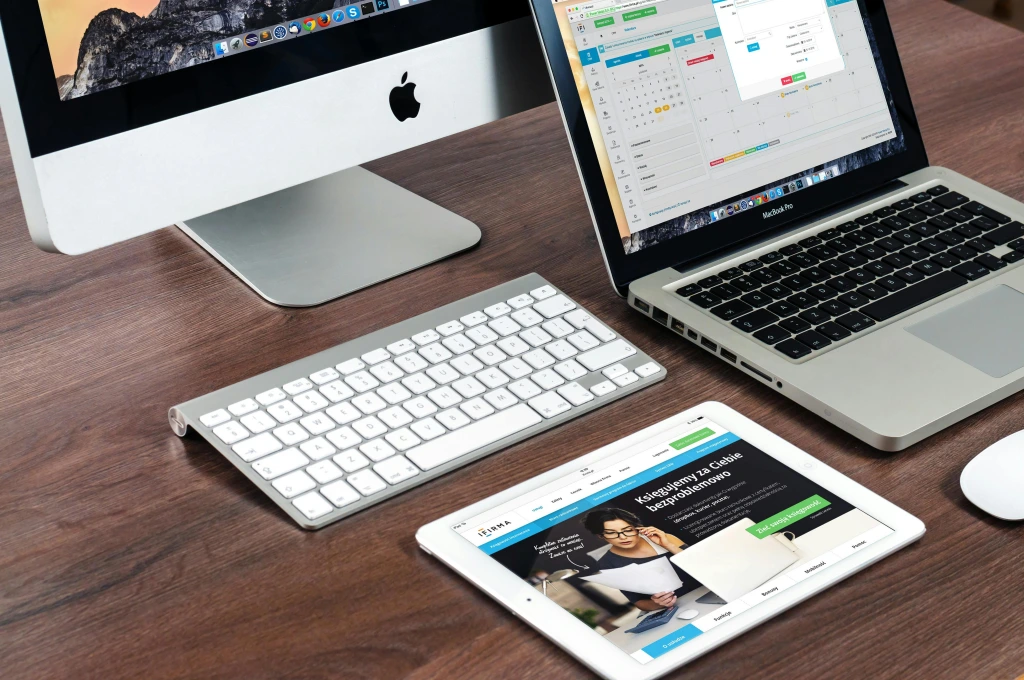
macOS (including the latest versions like macOS Tahoe in 2025) makes proxy configuration easy through System Settings.
Step-by-Step Manual Proxy Setup on Mac
- Click the Apple menu () in the top-left corner.
- Select System Settings > Network.
- Choose your active connection (e.g., Wi-Fi) from the sidebar.
- Click Details (or Advanced in older versions).
- Go to the Proxies tab.
- Check the boxes for protocols you need (e.g., Web Proxy (HTTP), Secure Web Proxy (HTTPS), or SOCKS Proxy).
- Enter the proxy server address (IP or hostname) and port.
- If required, enable authentication and input username/password.
- Add any bypass domains (e.g., local sites) in the designated field.
- Click OK > Apply.
Your Mac will now route traffic through the proxy.
For providers like OkkProxy, use their dashboard to get credentials—OkkProxy supports SOCKS5 and HTTP/S with global residential IPs for seamless integration.
Automatic Proxy Configuration on Mac
For dynamic setups:
- Enable Automatic Proxy Configuration and enter a PAC file URL.
- Or turn on Auto Proxy Discovery for network-detected settings.
This is useful for enterprise environments or rotating proxies.
How to Set Up Proxy on iOS (iPhone and iPad)
iOS proxy settings are per Wi-Fi network and limited to HTTP proxies natively (no cellular data support).
Step-by-Step Proxy Setup on iPhone/iPad
Open Settings > Wi-Fi.
Tap the info icon (i) next to your connected network.
Scroll down to HTTP Proxy and select Configure Proxy.
Choose Manual:
Enter Server (IP/hostname) and Port.
Toggle Authentication if needed and add credentials.
Or select Automatic for a PAC URL.
Save changes.
Test by visiting a site like whatismyipaddress.com—your IP should change.
OkkProxy’s mobile proxies work excellently here, providing rotating 4G/5G IPs that blend with real device traffic for high success rates.
Limitations on iOS
- Proxies apply only to the specific Wi-Fi network.
- No native SOCKS5 support—use third-party apps like Shadowrocket for advanced needs.
Proxy Types Comparison for Apple Devices
| Proxy Type | Best For Apple Devices | Anonymity Level | Speed | Detection Risk | Recommended Provider Example |
| HTTP/HTTPS | Web browsing | Medium | High | Medium | OkkProxy residential |
| SOCKS5 | Apps & torrents (macOS) | High | Medium-High | Low | OkkProxy SOCKS5 support |
| Residential | Undetectable access | Very High | High | Very Low | OkkProxy (real home IPs) |
| Mobile (4G/5G) | Social media & scraping | Highest | High | Lowest | OkkProxy rotating mobile |
| Datacenter | Speed-focused tasks | Low | Very High | High | Budget options |
Advanced Tips and Troubleshooting
Testing Your Proxy Setup
- Use sites like ipleak.net or browserleaks.com.
- Check for DNS leaks—premium proxies like OkkProxy prevent them.
Common Issues and Fixes
- Slow speeds: Choose closer server locations.
- Connection failures: Verify credentials; restart device.
- App-specific bypassing: Some apps ignore system proxies—use dedicated tools.
Third-Party Tools for Enhanced Proxy Use
- Proxyman or Charles Proxy for debugging on Mac.
- Shadowrocket or Potatso on iOS for SOCKS5/mobile support.
OkkProxy integrates smoothly with these for advanced users.
Best Practices and Security Considerations
- Always use reputable providers—free proxies risk malware.
- Combine with VPNs for encryption if needed.
- For privacy-focused tasks, rotating mobile proxies from OkkProxy provide the best undetectability.
FAQs About Using Proxies on Apple Devices
How to use Apple proxy for privacy?
Configure system settings as above; opt for residential/mobile proxies for maximum anonymity.
Can I use proxies on cellular data?
No on iOS; yes on macOS with hotspots.
Is setting up a proxy on Apple devices safe?
Yes, with trusted providers like OkkProxy that use ethical IPs.
What are the best proxies for Mac and iOS in 2026?
Residential and rotating mobile proxies—OkkProxy offers competitive pricing and vast pools.
How to disable proxy on Mac/iPhone?
Uncheck protocols in settings or select “Off” in iOS HTTP Proxy.
Conclusion: Master Apple Proxy Setup Today
Setting up and using proxies on Apple devices is simple yet powerful, unlocking better privacy, access, and functionality. Whether for everyday browsing or advanced tasks, a reliable proxy elevates your experience.
For superior performance, consider OkkProxy’s premium residential and mobile proxies—designed for seamless Apple integration, high speeds, and low detection. Start with their flexible plans and experience the difference in 2026.
Ready to enhance your Apple proxy setup? Explore OkkProxy today!